

Last updated on August 27th, 2026 at 11:33 am
Do you want to transform a simple photo into a movie-poster-style animated video that grabs attention, builds your brand, and converts viewers into fans? In this tutorial, I’ll show you exactly how I animated my Top Gun-inspired poster using AI tools like Nano Banana and Grok Imagine—and how you can do it too, for free.
This isn’t just about cool visuals. It’s about creating scroll-stopping content that makes people say: “Wow, how did you do that?” Ready to learn? Let’s dive in.
Step 1: Generate Your Cinematic Image with Nano Banana
Before you animate, you need a powerful base image. Nano Banana is an AI image generator that lets you create ultra-realistic, cinematic posters.
How to do it:
- Open your Gemini app or go to gemini.google.com.
- Select Create Image using Nano Banana.
- Upload your photo.
- Add a cinematic prompt (example below):
Ultra-realistic cinematic movie poster for 'TOP [YOUR NAME]'. The title uses the exact iconic, bold, metallic, industrial sans-serif font style as the Top Gun logo. Below it, the subtitle '[YOUR SUBTITLE]' in clean cinematic typography. The main character is the person from the uploaded photo: centered, wearing a dark green flight suit with patches, aviator sunglasses, and a baseball cap that clearly displays the text '[TEXT ON CAP]' on the front. Background features a dramatic golden sunset with fighter jets in formation. Color grading matches the specific 'Top Gun: Maverick' aesthetic: deep warm ambers/oranges for the light and cool teal shadows. High contrast, 8K resolution, blockbuster movie feel, 4:5 aspect ratio.
Boom—you now have a cinematic poster ready for animation.
Step 2: Animate Your Photo with Grok Imagine
Once your image is ready, it’s time to bring it to life using Grok Imagine.
Benefits of Grok Imagine
- ✅ Free signup (X account, Google, or email)
- ✅ Easy-to-use mobile app or desktop site
- ✅ Automatic video generation from any photo
- ✅ Customizable prompts for cinematic scripts
- ✅ Natural lip sync option for realistic speech
Method 1: Using the Grok Imagine Mobile App
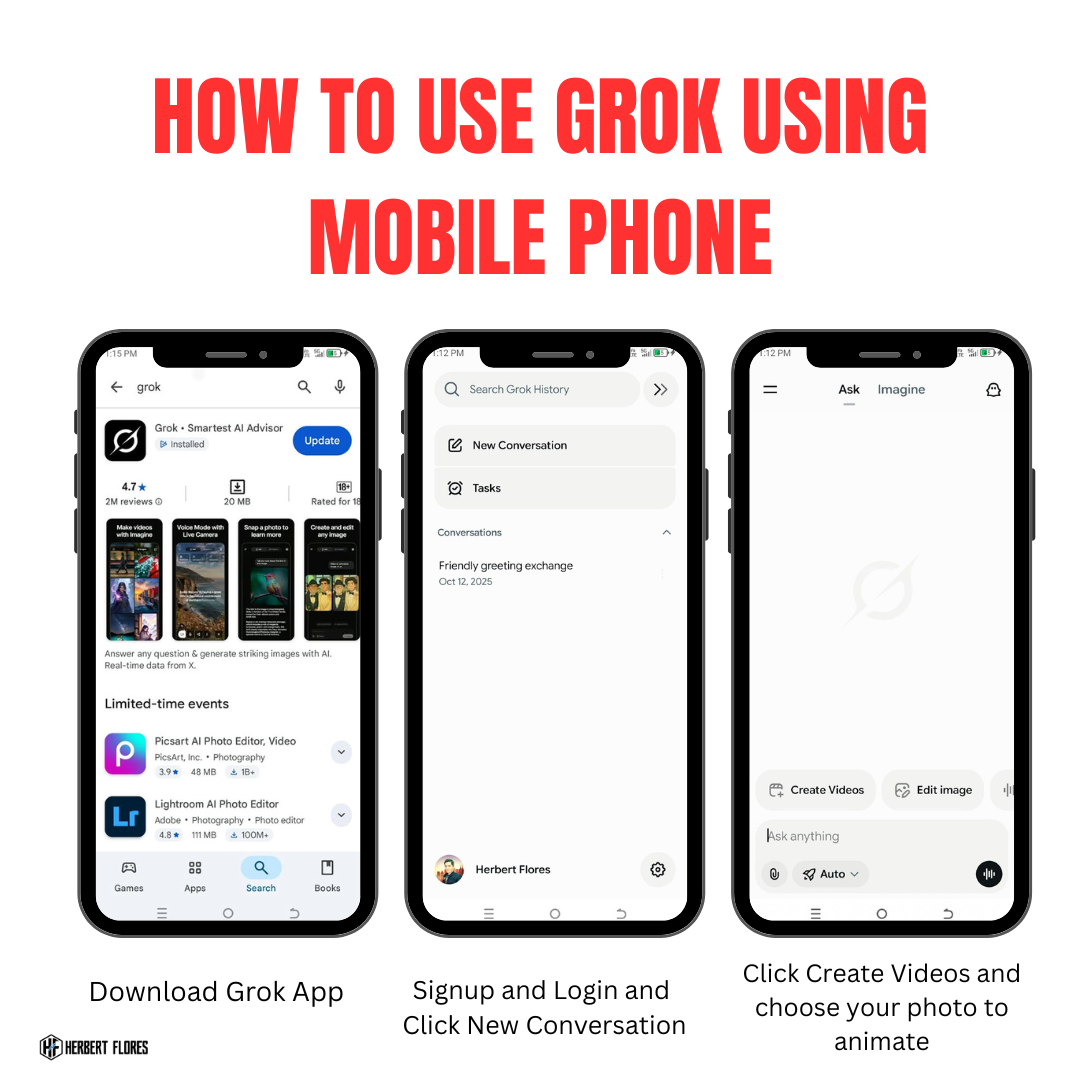
- Download the Grok Imagine app and sign up for free.
- Tap New Conversation.
- Select Create Video.
- Upload your photo.
- Wait for the upload—by default, Grok Imagine auto-generates a short video.
- To customize, add a prompt (e.g., “Character speaks with natural lip sync”).
- Generate a 6-second video for free.
You can also watch my short video tutorial on youtube by clicking here.
Method 2: Using Grok Imagine on Desktop
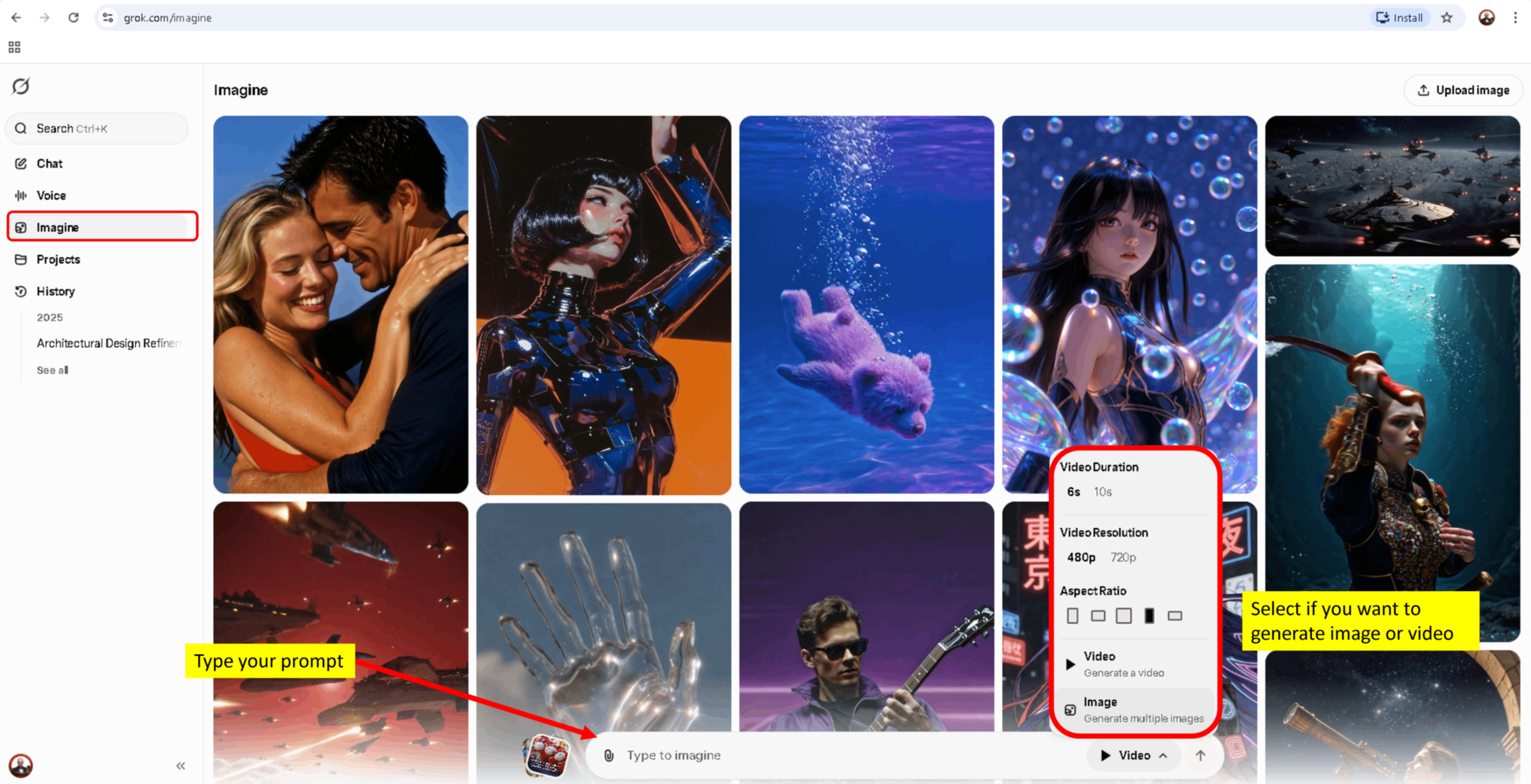
- Visit grok.com/imagine.
- Sign up using X, Google, or email.
- Click on Imagine → Select Image (if you want to generate multiple images using prompt) or choose Video (to generate a video using image of text to video prompt)
- Upload your photo to animate.
- Add a custom prompt if you want a script or cinematic motion.
- Generate your video and download it.
Bonus Tip: Add Natural Lip Sync
To make your video more engaging:
- Use prompts like “Natural voice, human-like lip sync” to avoid robotic speech.
- Keep scripts short (6–10 seconds) for maximum impact.
- For longer videos, screenshot the last frame of your 6-second clip, crop it to 9:16 ratio, and re-animate with a new prompt.
💡 Pro tip: Use Copilot or ChatGPT to generate creative video scripts or story prompts for even more cinematic results.
Why This Works
Animated posters aren’t just fun—they’re high-converting content assets. They:
- Grab attention instantly in crowded feeds.
- Build authority by showing you’re ahead of the AI curve.
- Drive engagement when you invite followers to try it themselves.
Free Guide
Want to learn more advanced tricks for creating viral AI videos?
👉 Download my free guide here: https://tinyurl.com/aivideoguide
You can also access my AI Prompt Collection by clicking the banner below!
Cinematic AI Video Quality Checklist
- Begin with a sharp, well-lit portrait where the face is clearly visible.
- Generate the exact starting pose and environment before animating.
- Ask for one believable motion instead of several complex actions.
- State that the face, hairstyle, clothing, proportions, and background must remain consistent.
- Use slow camera movement when identity preservation matters more than spectacle.
- Check the final frame for face drift, extra fingers, warped objects, and sudden wardrobe changes.
- Add captions and audio after generation so they remain editable.
Frequently Asked Questions
Do I need a reference image?
Yes, when you want a recognizable person, product, or outfit to remain consistent. A reference image gives the video model a much stronger visual anchor than text alone.
Why does the face change during animation?
Face drift usually increases when the motion is too complex, the reference is unclear, the camera turns too far, or the prompt asks the model to invent unseen details. Simplify the motion and use a cleaner starting frame.
Next, see how I created a superhero-style AI clip and my guide to turning AI video experiments into social content.


4 thoughts on “How to Turn Your Photo Into a Cinematic AI Video (Step-by-Step Tutorial)”