Last updated on February 16th, 2026 at 03:55 pm
Do you want to transform a simple photo into a movie-poster-style animated video that grabs attention, builds your brand, and converts viewers into fans? In this tutorial, I’ll show you exactly how I animated my Top Gun-inspired poster using AI tools like Nano Banana and Grok Imagine—and how you can do it too, for free.
This isn’t just about cool visuals. It’s about creating scroll-stopping content that makes people say: “Wow, how did you do that?” Ready to learn? Let’s dive in.
Step 1: Generate Your Cinematic Image with Nano Banana
Before you animate, you need a powerful base image. Nano Banana is an AI image generator that lets you create ultra-realistic, cinematic posters.
How to do it:
- Open your Gemini app or go to gemini.google.com.
- Select Create Image using Nano Banana.
- Upload your photo.
- Add a cinematic prompt (example below):
Ultra-realistic cinematic movie poster for 'TOP [YOUR NAME]'. The title uses the exact iconic, bold, metallic, industrial sans-serif font style as the Top Gun logo. Below it, the subtitle '[YOUR SUBTITLE]' in clean cinematic typography. The main character is the person from the uploaded photo: centered, wearing a dark green flight suit with patches, aviator sunglasses, and a baseball cap that clearly displays the text '[TEXT ON CAP]' on the front. Background features a dramatic golden sunset with fighter jets in formation. Color grading matches the specific 'Top Gun: Maverick' aesthetic: deep warm ambers/oranges for the light and cool teal shadows. High contrast, 8K resolution, blockbuster movie feel, 4:5 aspect ratio.
Boom—you now have a cinematic poster ready for animation.
Step 2: Animate Your Photo with Grok Imagine
Once your image is ready, it’s time to bring it to life using Grok Imagine.
Benefits of Grok Imagine
- ✅ Free signup (X account, Google, or email)
- ✅ Easy-to-use mobile app or desktop site
- ✅ Automatic video generation from any photo
- ✅ Customizable prompts for cinematic scripts
- ✅ Natural lip sync option for realistic speech
Method 1: Using the Grok Imagine Mobile App
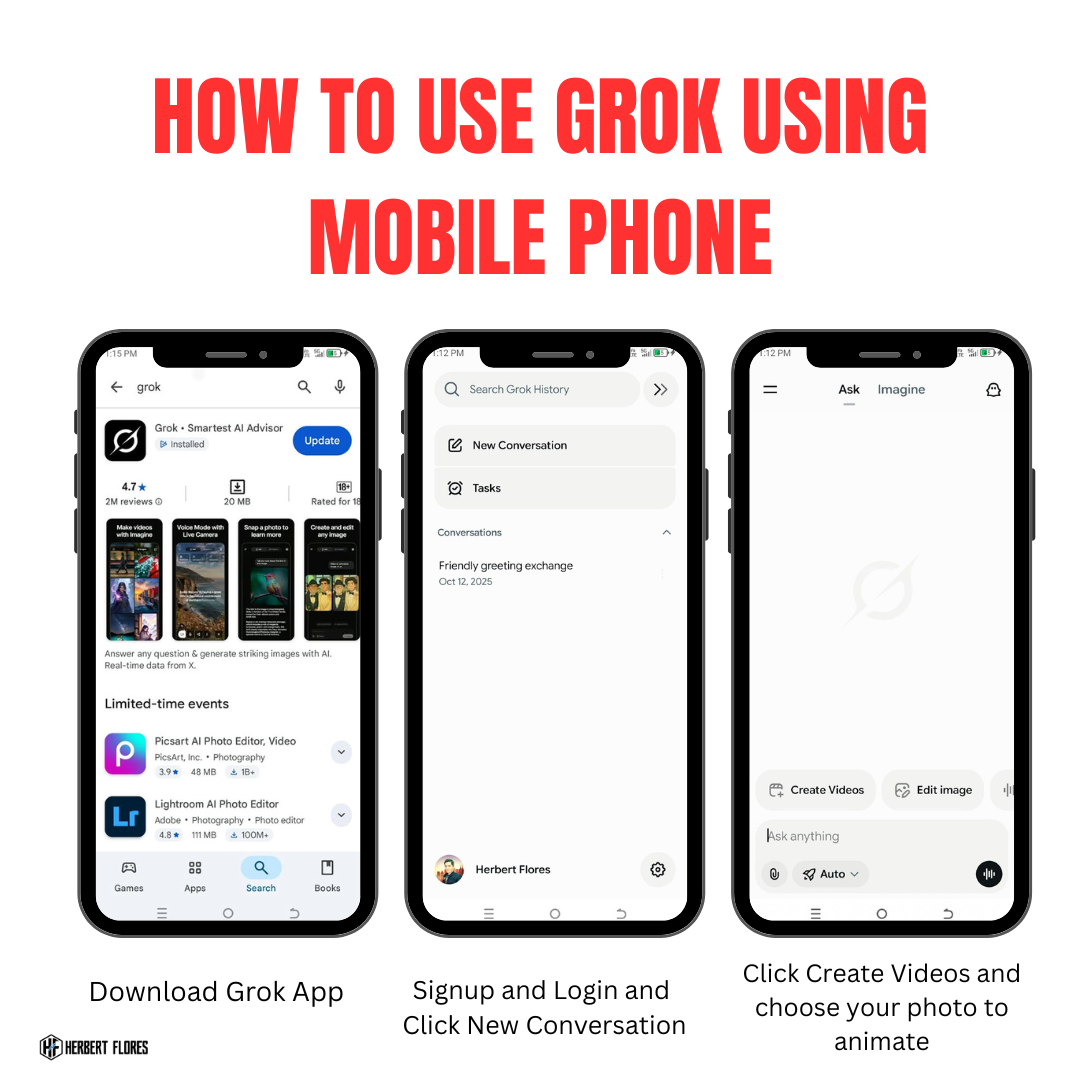
- Download the Grok Imagine app and sign up for free.
- Tap New Conversation.
- Select Create Video.
- Upload your photo.
- Wait for the upload—by default, Grok Imagine auto-generates a short video.
- To customize, add a prompt (e.g., “Character speaks with natural lip sync”).
- Generate a 6-second video for free.
You can also watch my short video tutorial on youtube by clicking here.
Method 2: Using Grok Imagine on Desktop
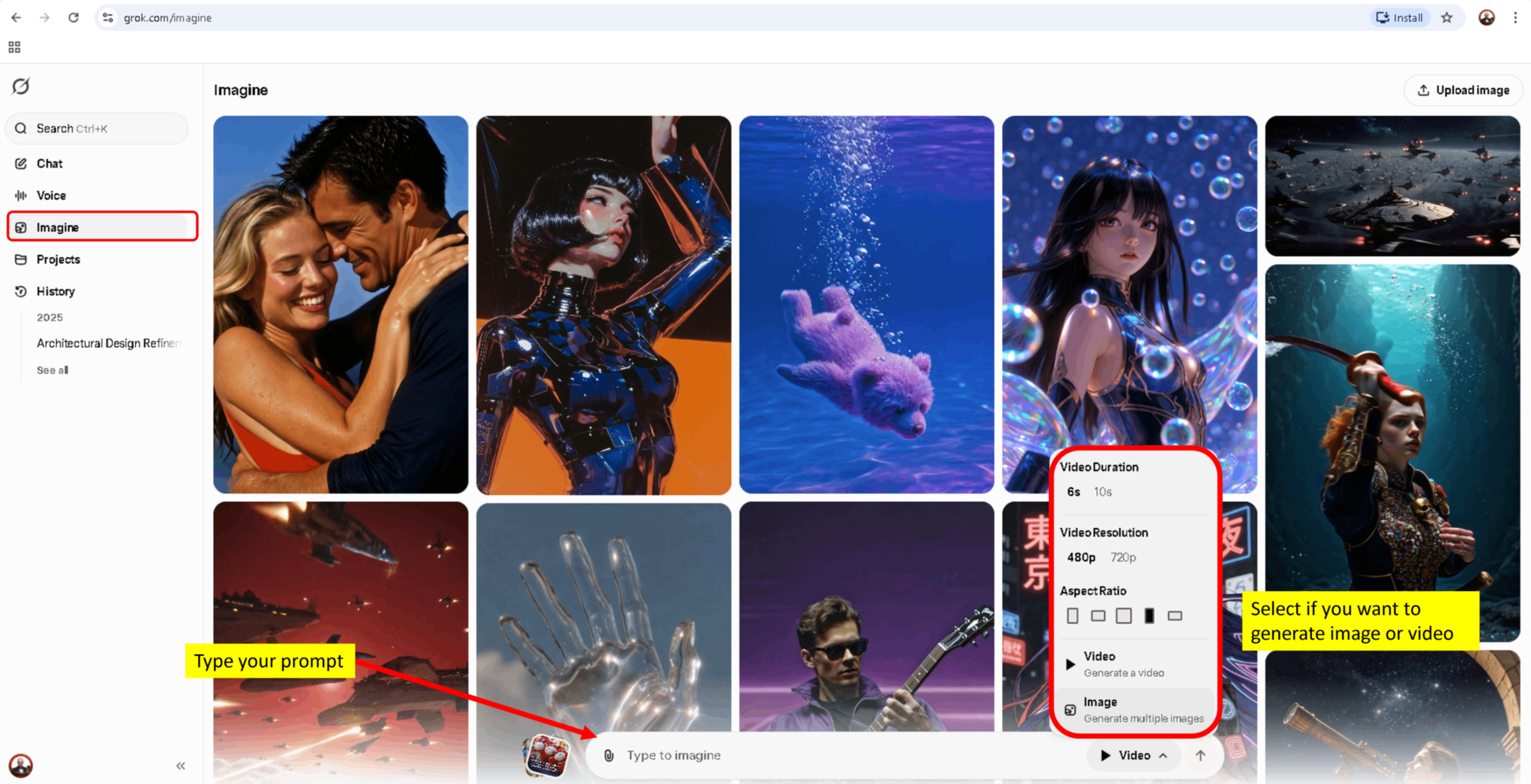
- Visit grok.com/imagine.
- Sign up using X, Google, or email.
- Click on Imagine → Select Image (if you want to generate multiple images using prompt) or choose Video (to generate a video using image of text to video prompt)
- Upload your photo to animate.
- Add a custom prompt if you want a script or cinematic motion.
- Generate your video and download it.
Bonus Tip: Add Natural Lip Sync
To make your video more engaging:
- Use prompts like “Natural voice, human-like lip sync” to avoid robotic speech.
- Keep scripts short (6–10 seconds) for maximum impact.
- For longer videos, screenshot the last frame of your 6-second clip, crop it to 9:16 ratio, and re-animate with a new prompt.
💡 Pro tip: Use Copilot or ChatGPT to generate creative video scripts or story prompts for even more cinematic results.
Why This Works
Animated posters aren’t just fun—they’re high-converting content assets. They:
- Grab attention instantly in crowded feeds.
- Build authority by showing you’re ahead of the AI curve.
- Drive engagement when you invite followers to try it themselves.
Free Guide
Want to learn more advanced tricks for creating viral AI videos?
👉 Download my free guide here: https://tinyurl.com/aivideoguide
You can also access my AI Prompt Collection by clicking the banner below!